Mirth Connect: Part 1 - Getting Started with 🐳 Docker
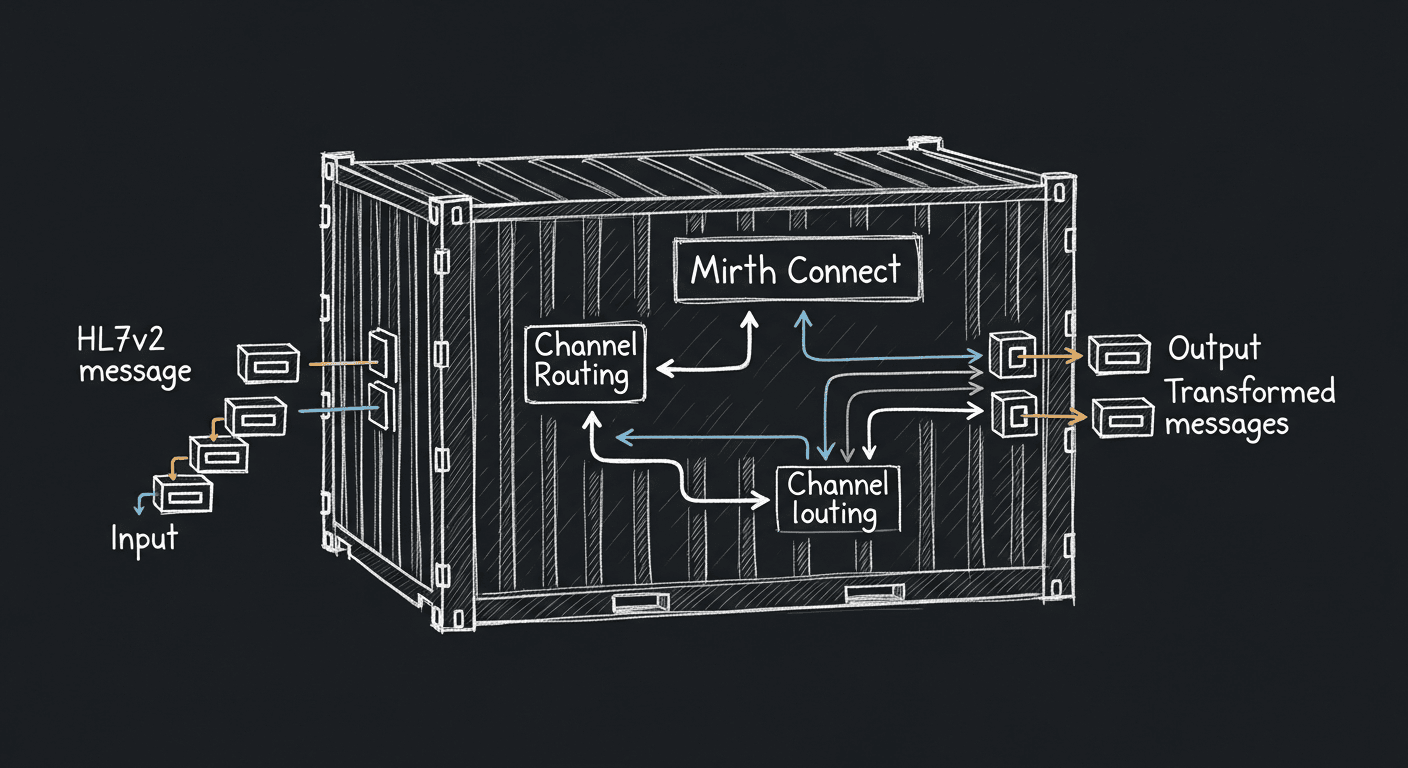
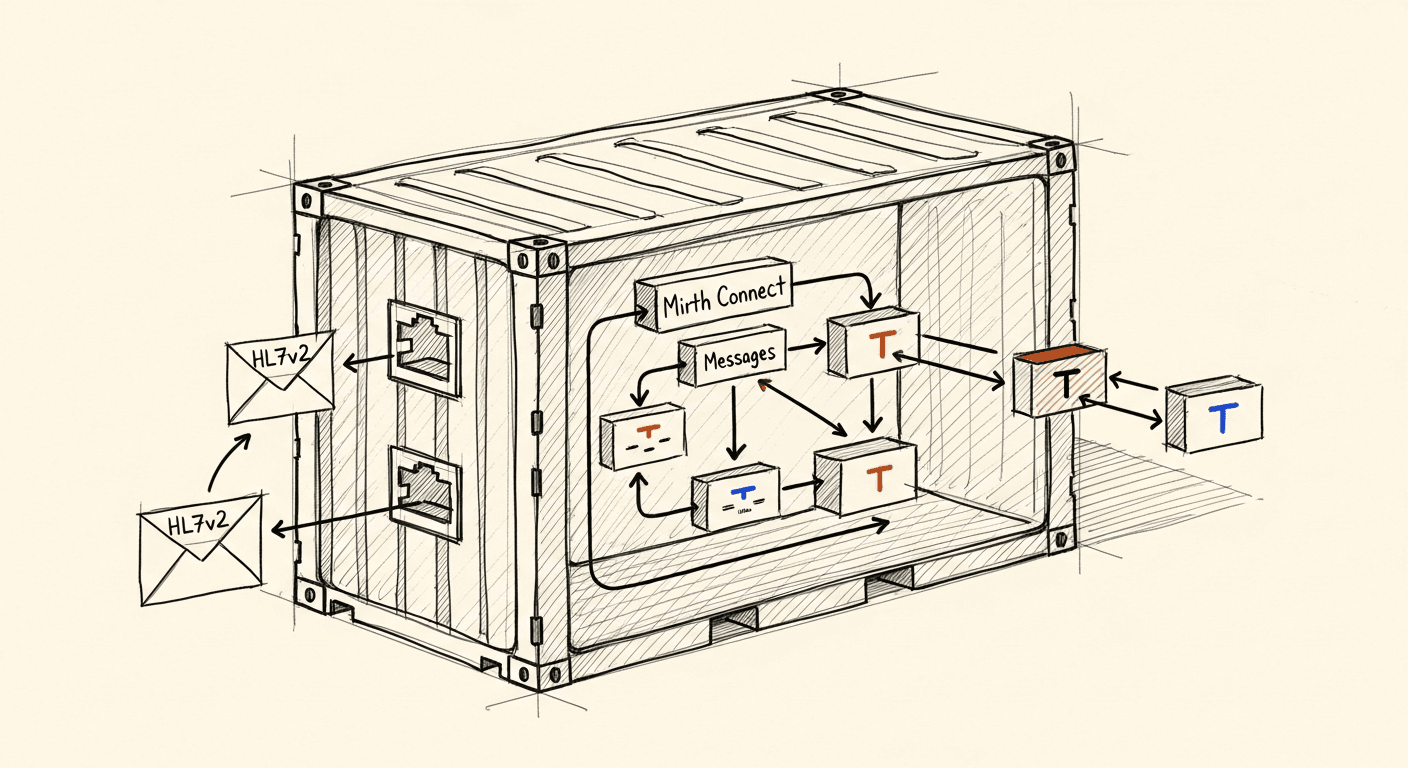
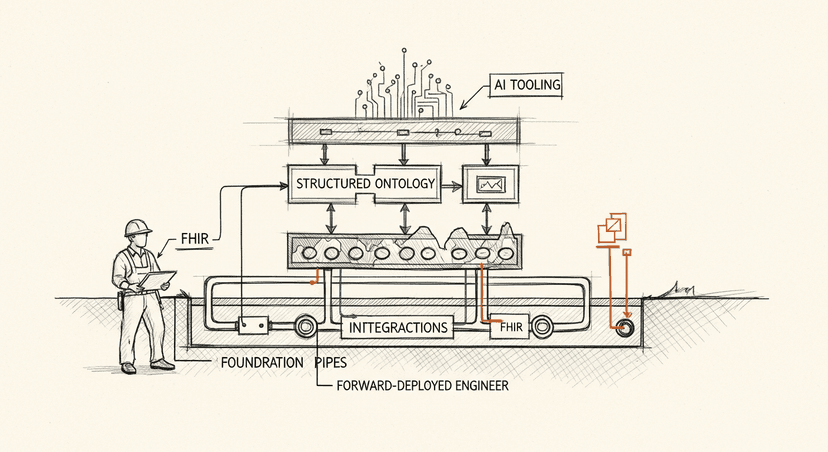
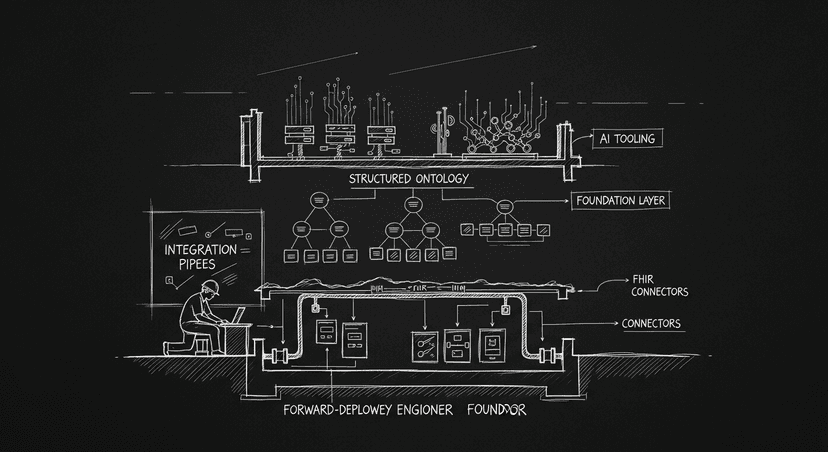
Technical schematic of Mirth Connect inside a Docker container with HL7v2 message flow

The engine that has run healthcare integrations for twenty years

Getting Started

Head over to Docker and download the application for your OS.

Once Docker is installed and running, pull the latest NextGen Connect Docker image with: docker pull nextgenhealthcare/connect

You should see an image with repository: nextgenhealthcare/connect and tag 'latest'.

Start a Connect container by running: docker run --name connect -d -p 8443:8443 nextgenhealthcare/connect

  • -name connect names your container connect
  • d runs your container in the background
  • p 8443:8443 maps your OS port 8443 to the container's port 8443
  • nextgenhealthcare/connect tells docker what image to use, in this case the latest image, when creating your container

Connect is now running and you can reach it at https://localhost:8443. One thing to know: only port 8443 is mapped to the host OS. If you deploy a channel inside this container and try to send a message to it, it will fail until you map the channel's port as well.

Check the container status with: docker ps -a

Check the server logs with: docker logs connect

Stop and remove the container with: docker stop connect && docker rm connect

When you remove a container running on the embedded Derby database, the database goes with it — all your channels and messages included. The "Docker Volumes" section below covers how to persist that data.

Configuring

The Connect Docker image supports configuration via environment variables, custom properties files, and Docker Secrets. Here's how each approach works.

Environment Variables

The Docker images support these environment variables natively:

DATABASE (ex: derby, postgres, mysql, oracle, sqlserver)
DATABASE_URL
DATABASE_USERNAME
DATABASE_MAX_CONNECTIONS
KEYSTORE_STOREPASS
KEYSTORE_KEYPASS
SESSION_STORE
VMOPTIONS
DELAY

Pass them using the -e parameter. To specify a database type and set a VM option: docker run --name connect -e DATABASE='derby' -e VMOPTIONS='-Xmx512m' -p 8443:8443 nextgenhealthcare/connect

Most environment variables map to entries in Connect's mirth.properties file. For the full list of supported properties, search the User Guide for "mirth.properties".

For any property not covered by the named variables, use the _MP_ prefix syntax: replace - with _ and . with __. To set database-readonly.max-connections = 25, run: docker run --name connect -e _MP_DATABASE__READONLY_MAX__CONNECTIONS='25' -p 8443:8443 nextgenhealthcare/connect

Loading all your variables as command-line arguments gets unwieldy fast. Docker supports loading them from a file instead. Here's an example file (substitute serverip with your actual IP): myenvfile.txt

DATABASE=postgres
DATABASE_URL=jdbc:postgresql://serverip:5432/mirthdb
DATABASE_USERNAME=postgres
DATABASE_PASSWORD=postgres
KEYSTORE_STOREPASS=changeme
KEYSTORE_KEYPASS=changeme
VMOPTIONS=-Xmx512m

Use it with Docker: docker run --env-file=myenvfile.txt -p 8443:8443 nextgenhealthcare/connect

Docker Secrets

Passing credentials as command-line arguments means they show up in process listings. Docker Secrets handles this more securely: secrets are encrypted in transit and at rest inside a Docker Swarm, and only services with explicit access can read them while running. Docker Secrets works with Docker Swarm, Docker Compose, and Docker Stack.

The Connect Docker images support two secret names: mirth_properties and mcserver_vmoptions. Properties in mirth_properties get merged into mirth.properties. VM options in mcserver_vmoptions get added to mcserver.vmoptions. Here's how to wire this up with Docker Compose.

Create a secret file: secret.properties

keystore.storepass=changeme
keystore.keypass=changeme

Define your stack (update the path to secret.properties): mirth_stack.yml

version: '3.1'
services:
  mc:
    image: nextgenhealthcare/connect
    container_name: connect
    secrets:
      - mirth_properties
    ports:
      - 8080:8080/tcp
      - 8443:8443/tcp
secrets:
  mirth_properties:
    file: /local/path/to/secret.properties

Deploy with Docker Compose: docker-compose -f mirth_stack.yml -d up

Verify the secrets merged correctly: docker exec -it connect cat conf/mirth.properties

Bring down the stack: docker-compose -f mirth_stack.yml down

As you go further, you'll want version control and automated testing wired in. A couple of tools make that straightforward.

Version Control

Mirth Sync: https://github.com/SagaHealthcareIT/mirthsync

Mirth Sync is a command-line tool for synchronizing Mirth Connect code between servers. It handles push and pull for channels, code templates, configuration maps, and global scripts. It integrates with Git and other version control systems for tracking changes over time.

Git-ext: https://github.com/kayyagari/git-ext

Git Ext is a MirthConnect extension that version-controls Channels and CodeTemplates directly on the server using JGit.

Automated Testing

Jest unit testing framework for mirth: https://github.com/vibinernesto/Mirth-Jest-Framework

Docker Hygiene Cheat Sheet

Working with Docker regularly means accumulating unused images, containers, and volumes. They don't cause problems immediately, but they eat disk space and clutter output. These commands keep things tidy.

# Docker provides a single command that will clean up any resources — images,
# containers, volumes, and networks — that are dangling (not tagged or associated
# with a container).
docker system prune

# To additionally remove any stopped containers and all unused images (not just
# dangling images), add the -a flag to the command.
docker system prune -a

# Use the docker images command with the -a flag to locate the ID of the images
# you want to remove. This will show you every image, including intermediate
# image layers. When you've located the images you want to delete, you can pass
# their ID or tag to docker rmi.
docker images -a 
docker rmi Image Image

# Remove Dangling Images
docker images -f dangling=true
docker image prune

# Remove By Pattern
docker images -a |  grep "pattern"
docker images -a | grep "pattern" | awk '{print $3}' | xargs docker rmi

# Remove all images
docker images -a
docker rmi $(docker images -a -q)

# Remove Containers
docker ps -a
docker rm ID_or_Name ID_or_Name

# Remove all exited containers
docker ps -a -f status=exited
docker rm $(docker ps -a -f status=exited -q)

# Remove all containers with multiple filters
docker ps -a -f status=exited -f status=created
docker rm $(docker ps -a -f status=exited -f status=created -q)

# Stop and remove all containers
docker ps -a
docker stop $(docker ps -a -q)
docker rm $(docker ps -a -q)

# Remove volumes
docker volume ls
docker volume rm volume_name volume_name

# Remove dangling volumes
docker volume ls -f dangling=true
docker volume prune

# Remove a container and its volume
docker rm -v container_name

# Remove all containers according to a pattern

# You can find all the containers that match a pattern using a 
# combination of `docker ps` and `grep`. 
# When you're satisfied that you have the list you want to delete, 
# you can use `awk` and `xargs` to supply the ID to `docker rm`. 
# Note that these utilities are not supplied by Docker and are 
# not necessarily available on all systems:

docker ps -a |  grep "pattern"
docker ps -a | grep "pattern" | awk '{print $1}' | xargs docker rm
SharePostShare