Mirth Connect: Part 2 - Adding 🐰RabbitMQ
When your integration engine needs a memory
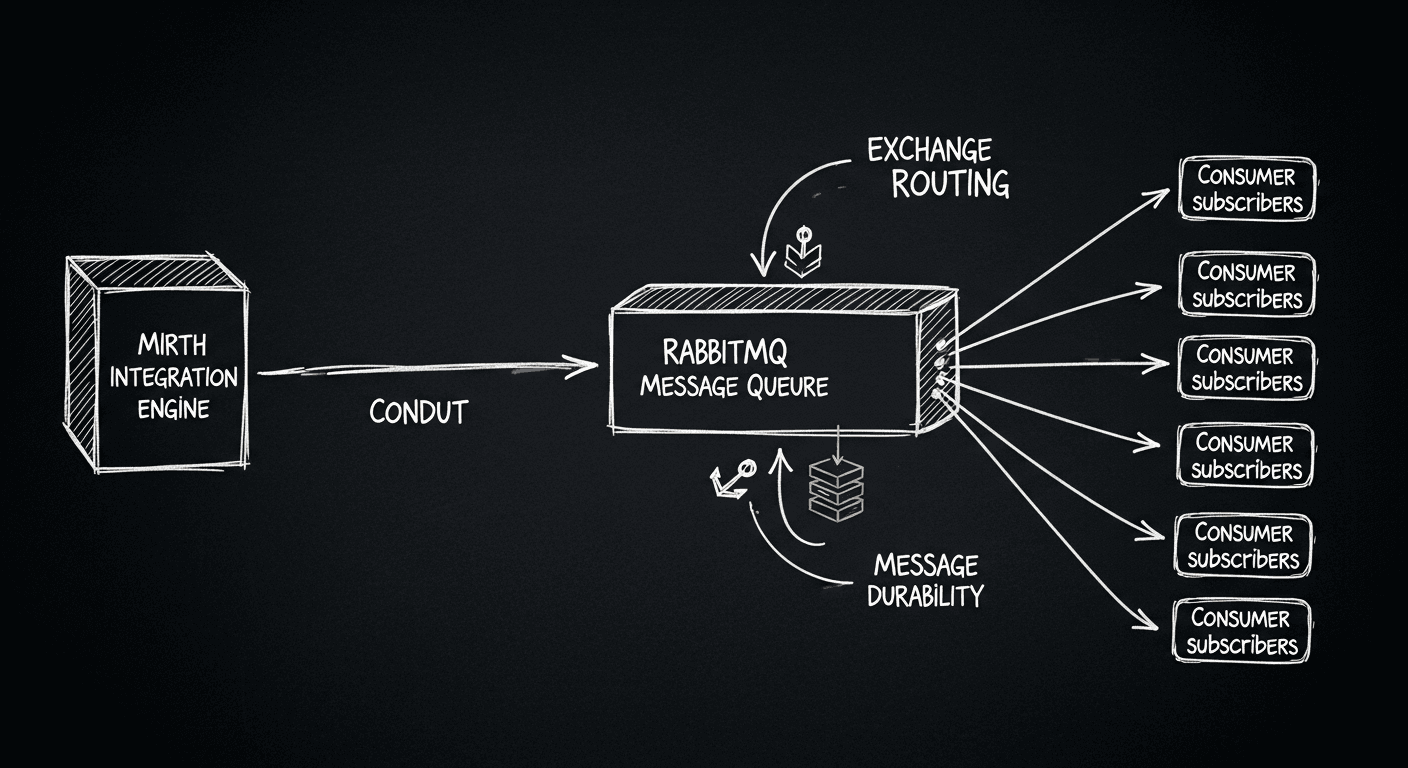
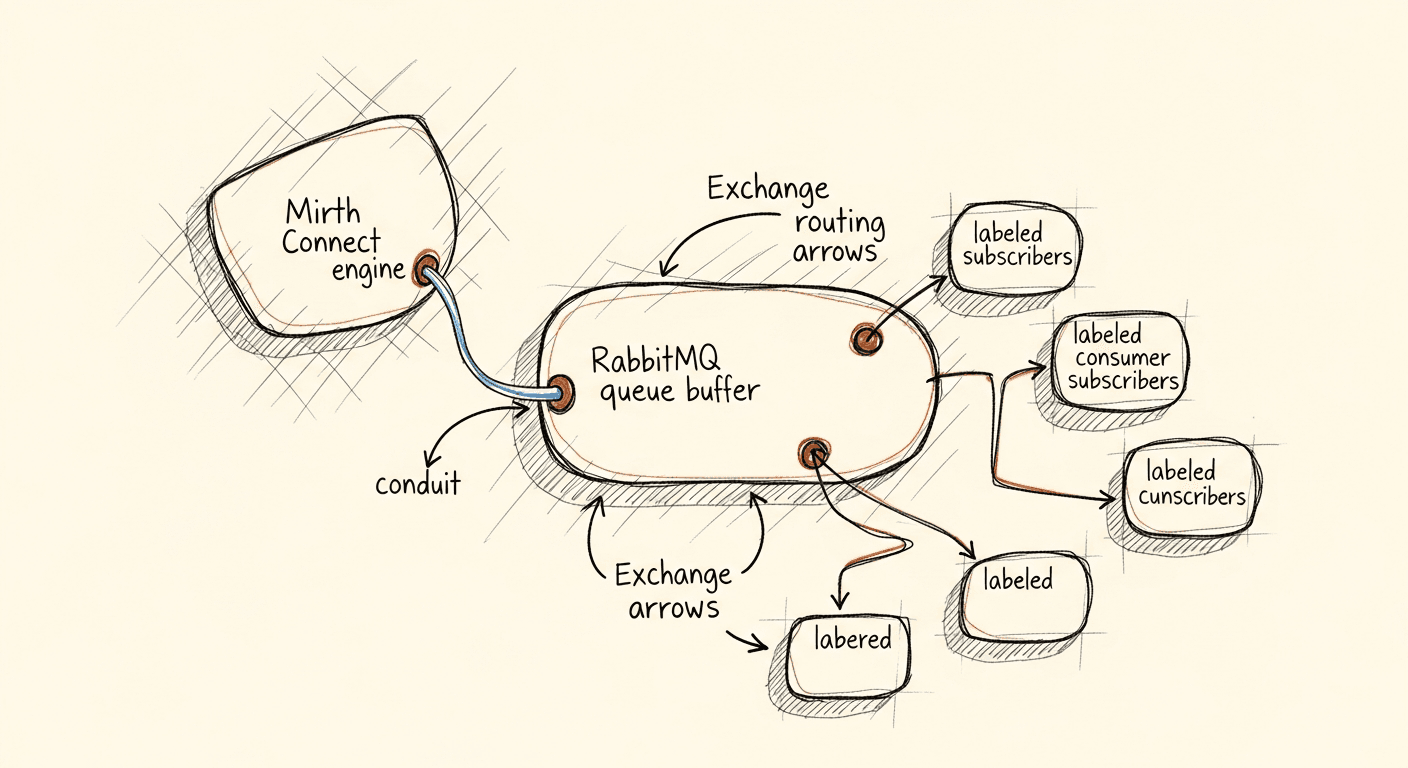
Mirth Connect is excellent at transforming and routing HL7v2 messages. What it's less good at is surviving downstream failures without losing messages. That's where RabbitMQ comes in. Adding a message queue between Mirth and its consumers makes the whole integration more durable.
Scalability
RabbitMQ handles high message volumes and supports clustering for increased throughput and redundancy. Paired with Mirth Connect, it removes the integration engine as a bottleneck: Mirth transforms messages and hands them off to the queue, and the queue absorbs load spikes that would otherwise back up into Mirth.
Reliability
RabbitMQ persists messages and requires delivery acknowledgments. If Mirth fails to process a message, the message stays in the queue and gets reprocessed when Mirth recovers. In healthcare integrations, losing a message isn't an acceptable failure mode.
Decoupling
The queue acts as a buffer between message producers and consumers. If Mirth goes down for maintenance, incoming messages continue flowing into RabbitMQ. When Mirth comes back up, it processes the queued messages in order. Producers never need to know that the consumer was temporarily unavailable.
Flexible Routing
RabbitMQ's exchange and queue model routes messages based on content or type. Different message types — ADT, ORU, SIU — can land in different queues, each consumed by different processors. This is cleaner than building all the routing logic inside Mirth channels.
Load Balancing
Multiple Mirth instances can consume from the same RabbitMQ queue, which distributes processing load across them. No single instance gets overwhelmed, and you can scale horizontally by adding consumers without changing the producer configuration.
Integration with Other Systems
RabbitMQ isn't limited to Mirth. Other systems in your healthcare infrastructure can produce or consume from the same queues. This turns RabbitMQ into a central messaging hub, which simplifies integration between systems that otherwise have no direct connection.
Enhanced Monitoring and Management
RabbitMQ ships with a management plugin that provides a web-based UI for monitoring broker health, viewing message rates, and managing queues and exchanges. In a production healthcare environment, that visibility is useful when something stops flowing.
Related Articles
Healthcare AI Will Be Won by Verticals. The Recipe Has Been Around for a Decade.
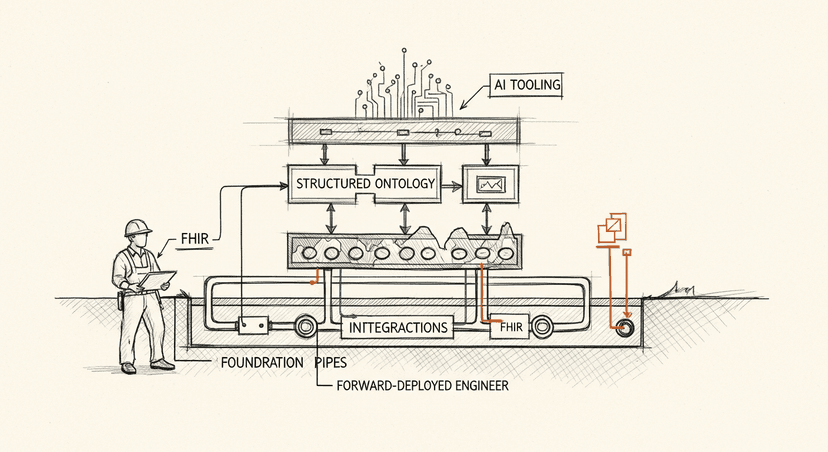
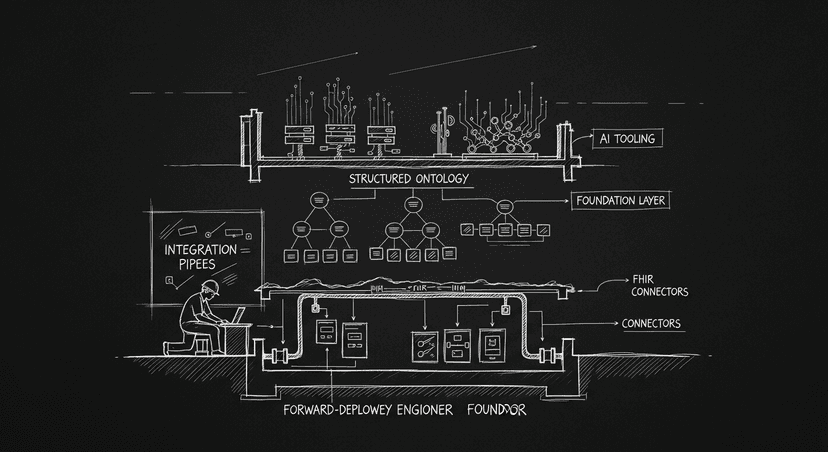
Most healthcare AI companies are failing for the same reason. The ones winning are running the same playbook: one Palantir figured out before anyone called it AI. Forward-deployed engineer. Ontology. Integrations. Then AI tooling.
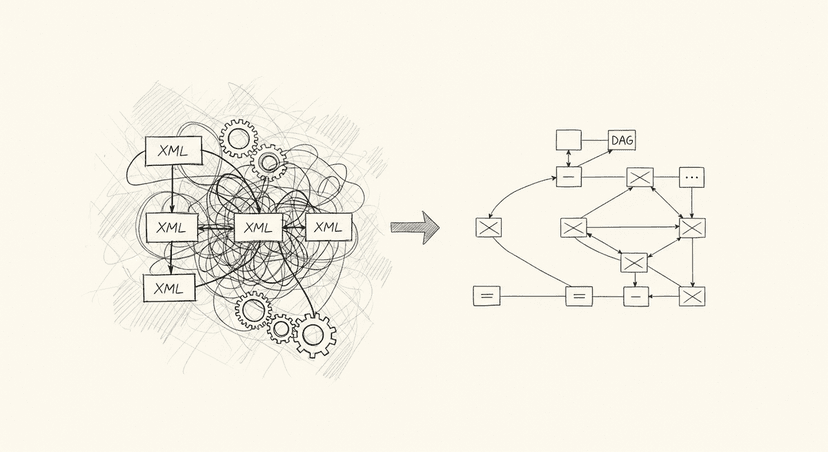
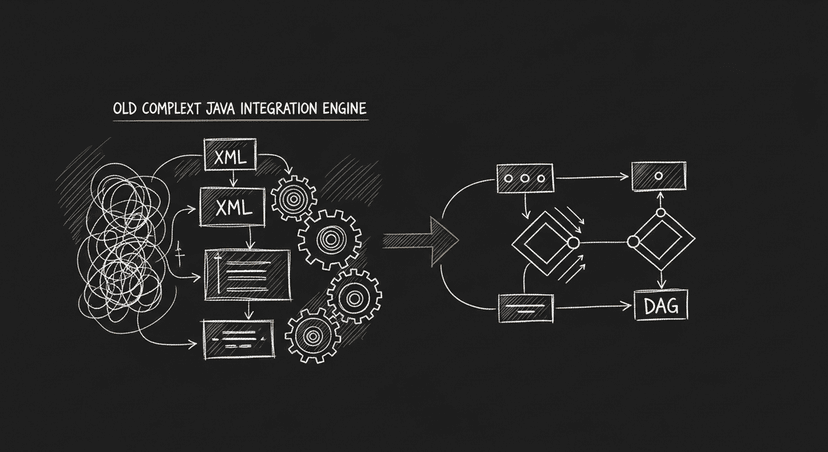
Mirth Connect, what happened? Here's What Comes Next.
Mirth democratized healthcare integration. Then NextGen acquired it, and the world moved on. What the next generation of integration tooling looks like, and why the transition was inevitable.
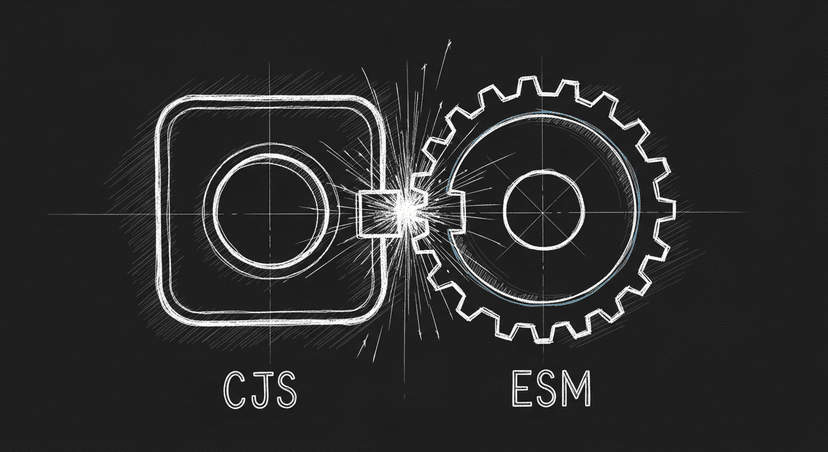
The ESM Mess: JavaScript's Module System Is Still Broken and Here's Why
ES Modules have been the supposed future of JavaScript for nine years. Only 9-27% of the ecosystem has adopted them. What's really going on, and how to survive until the ecosystem commits.
Building something like this?
I help teams ship AI in production — audits, consulting, custom agents, and eval systems. Start with an AI Audit (from $5k) for an honest read on what to build.